Managing your account, team, and billing
This guide covers your account essentials: adding payment details, managing teammates, and pausing your campaigns.
Payment details (Stripe)
DiscoAds bills through Stripe. During first-time setup, add your payment method so your campaigns can run, and make sure the right billing contact / invoice email is on file so invoices reach the right person.
Set up your billing: add and manage your payment method — and view your invoices — in the Stripe billing portal. Billing is handled in Stripe — not inside the Disco platform. Not using Stripe internally? Let your Disco team know what works best for you.
Billing terms
- You're invoiced the first week of each month for the billable clicks or conversions Disco drove the previous month. Payment terms are Net 15.
- Invoices are automatically charged to the payment method on file in Stripe unless otherwise stated. If an account is delinquent more than 90 days, Disco may charge the payment method on file.
- What you're billed on depends on your model:
- CPC — billable clicks (total outbound clicks per advertiser, per Disco session; IAB One-Click-Per-Impression). See Setting your bid for what counts.
- CPA / CPO — conversions in Disco's 14-day window (clicks and views): new and lapsed (12+ months) customers at your Fixed CPA, returning customers at your Fixed CPO. Update both month to month. See [Disco's attribution model].
A worked example (CPA/CPO): you set a $100 CPA and $50 CPO. Last month Disco converted 20 new or lapsed (12+ months) customers and 5 returning customers. Your invoice: (20 × $100) + (5 × $50) = $2,250.
Making billing changes
- Update your bid — reach out to your CSM, or file a ticket via the Help icon in your Disco dashboard.
- Change who receives your invoices — reach out via the Help icon.
- Update your payment method — log in to the Stripe billing portal.
Manage your team
In Settings → Team, enter a teammate's email and click Send an invite — they get access to collaborate on your brand account.
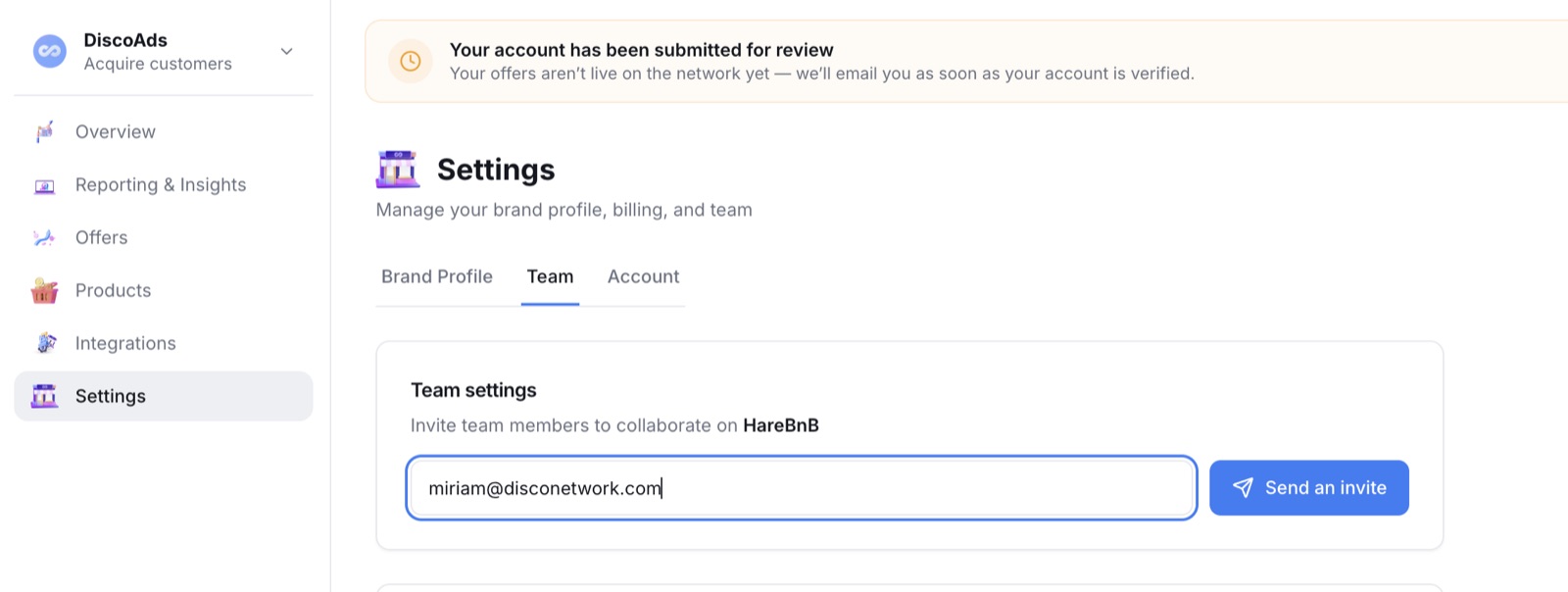
The person you invite receives an email to set up their Disco account, including setting a password. Invites expire after about a day — if one lapses, no problem: use the Resend button next to their invite on the Team page.
Pause your campaigns
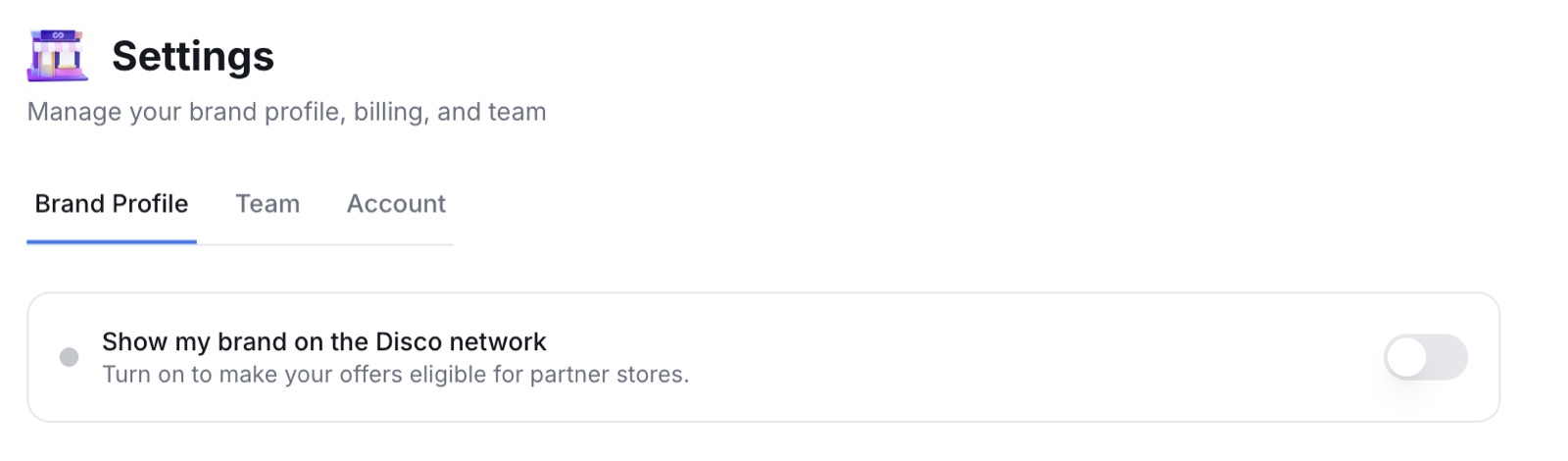
You can pause when you need to and resume later — without closing your account. In Settings → Brand Profile, turn off Show my brand on the Disco network: your offers stop being eligible to appear on partner stores until you turn it back on. To retire a single offer instead, archive it from the Offers list.
Related articles
Cancelling your account
Need to cancel? See Cancelling your account — it covers advertisers and publishers, including what happens after you cancel and when pausing is the better option.